
Install Guide
Install Guide
Thank you for your purchase. Choose how you'll play, then follow the steps in order.
This guide covers the full version, ver1.2.0.
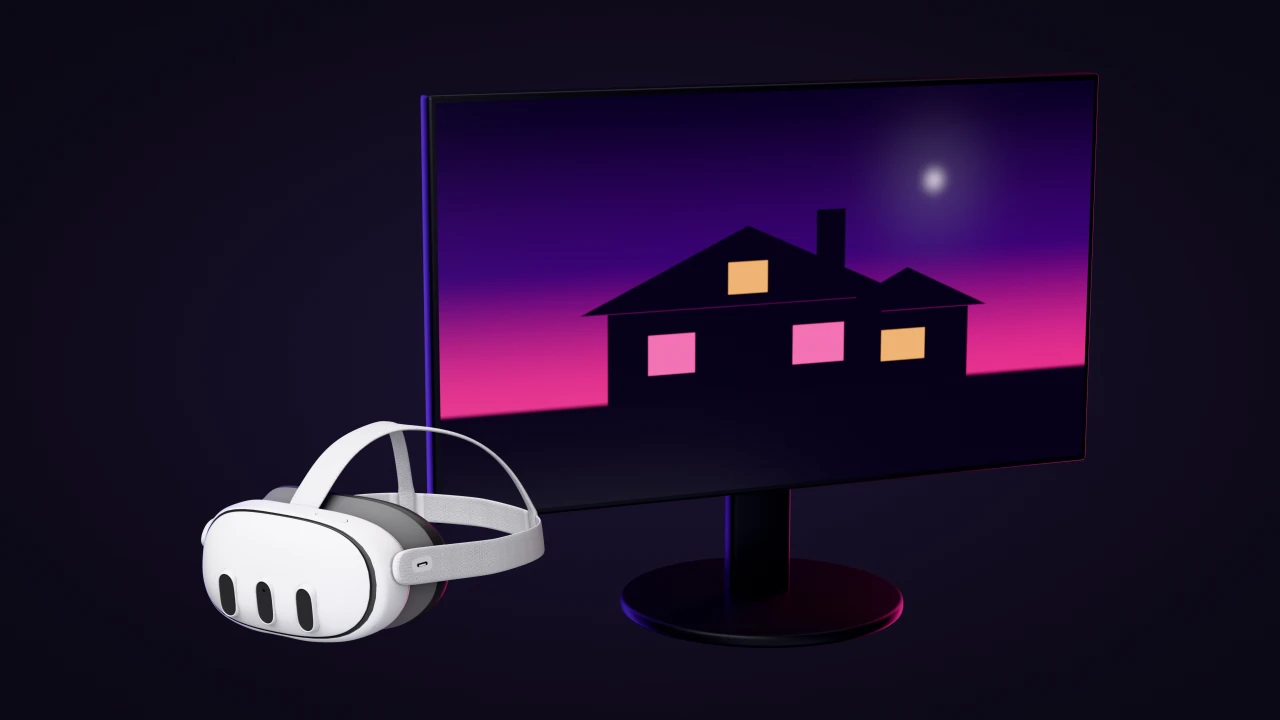 PCVR
PCVR Version
Connect a VR headset to your PC. Start SteamVR and run "MRsecretVR.exe" to play.
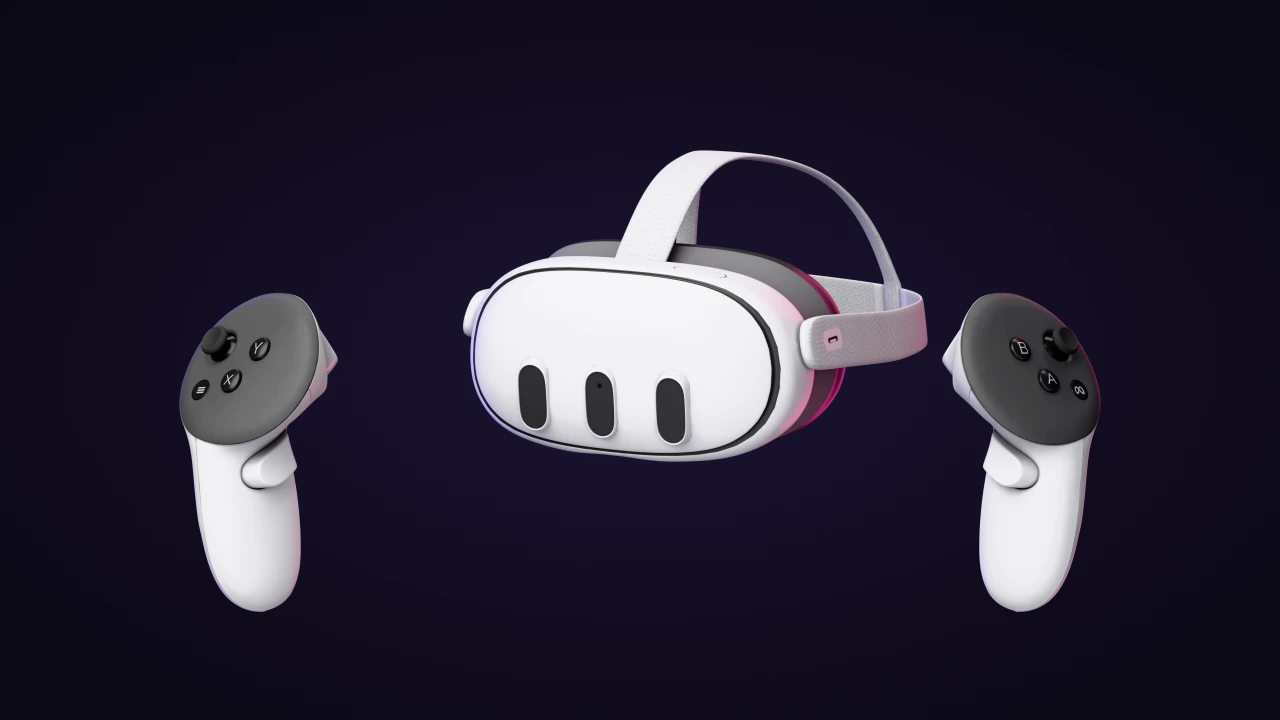 Quest
Quest Standalone Version
Runs on a Meta Quest headset alone. Install "MRsecretVR.apk" on the Quest to play.
Example of the extracted files
PCVR Setup
Setting Up the PCVR Version
Install SteamVR
- Launch Steam on your PC
- Open Store at the top
- Search for SteamVR
- Select the green button (Add to Library or Play) and finish installing
Once installed, launch it from "Tools" in your Steam Library.
Place the Game Files
- Extract the downloaded game files
- Place the extracted MRsecretVR_PCVR folder where you want to keep the game
Connect Your Headset and Start SteamVR
Choose the headset you use. Once connected, the SteamVR home appears in your headset.
- Connect the VR headset to your PC
- Start SteamVR
- Install the Meta Horizon Link app (formerly Meta Quest Link) on your PC
- On the Quest, open Quick Settings → Link from the Navigator
- Select your PC and LaunchFor Air Link (wireless), turn on Use Air Link and pair first
- Select SteamVR from the Link home screen to start it
- Install the Virtual Desktop app on your headset (sold separately: Quest via the Meta Horizon Store, PICO via the PICO Store)
- Install the Virtual Desktop Streamer on your PC, enter the username of your headset account (Meta or PICO) under ACCOUNTS and click Save
- Launch Virtual Desktop on the headset and connect to your PCOnce connected, your PC screen appears in the headset
- Select Launch SteamVR from the left menu
- Install Steam and SteamVR on your PC.
- Connect your PC and headset to the same network. A wired connection from the PC to the router is recommended.
- Install Steam Link from the store on a supported headset.
- Open Steam Link in the headset and follow the on-screen pairing instructions.
Supported devices and connection requirements (Steam)
Launch the Game
- Open the MRsecretVR_PCVR folder you placed
- Double-click MRsecretVR.exe
- The game starts and appears in your VR headset
Congratulations!
You're all set! Enjoy your time with her to the fullest!
Quest Setup
Setting Up the Quest Standalone Version
This method uses the Quest browser and Files app. A phone is also needed if you need to set up developer mode.
If it does not work, use B. SideQuest.
Prepare the APK File
- In the Quest browser, go to DLsite, log in and download the game
- Open the Files app, select the three-dot menu on the downloaded zip, then Extract
If extraction fails, try Option 2. The APK can't be installed while it's still zipped.
- Extract the downloaded game files on your PC
- Connect the Quest to your PC via USB
- In the Quest, select Allow to grant file access
- Copy MRsecretVR.apk from your PC to the Quest's Download folder
Install the APK
- Find MRsecretVR.apk in the Files app
- On the APK, select the three-dot menu → Open with → Package Installer
- Install → Done
If it won't install or launch, complete Enable Developer Mode and try again.
Launch the Game
- Press the Meta button to open the menu and select Library at the bottom center
- Select the three-line menu icon at the left edge of Library
- Select Unknown Sources
- Select MRsecretVR to launch it
The menu icon at the left edge is small and can be hard to hit. That's down to the Quest's own interface. Move the pointer slowly and press when the "Menu" label appears.
Note: Opening Unknown Sources works slightly differently depending on your Quest version. Unknown Sources doesn't appear unless Developer Mode is enabled. If it still doesn't appear after enabling it, restart the Quest.
Quest · Library
Congratulations!
You're all set! Enjoy your time with her to the fullest!
Enable Developer Mode
- Register an organization on Meta Quest for DevelopersSee "How to register an organization" below
- Turn on Bluetooth on your phone and open the Meta Horizon app (formerly the Meta Quest app)
- From the three-line menu, select Devices
- Select your Quest (check that it shows "Connected")
- Headset settings → turn on Developer mode
- Restart the Quest
How to register an organization
- Go to Meta Quest for Developers and log in with your Meta Quest account
- Complete the Meta verification steps shown on screen
- Follow the on-screen instructions to register an organization
Install the ADB Driver
- Click Download on the Meta Quest Developer Center
- Check "I have read and agree to the terms of the license ." and click Download to save
- Unzip the file
- Right-click android_winusb.inf and select Install
- When "The operation completed successfully." appears, click OK
Install SideQuest
- On the SideQuest website, click Download for Windows under "SideQuest desktop app"
- Run the downloaded file to install
Connect the Quest to Your PC
- Connect the Quest to your PC with a USB cable
- In the Quest, at "Allow USB debugging?" select AllowTo skip this next time, check "Always allow from this computer"
- Select the bell icon at the bottom of the home menu: Notifications → USB detected
- At "Allow connected device to access files?" select Allow
Install the Game
- Open SideQuest and check that the Quest is detectedIf it shows
No device connected, the Quest isn't connected. Check the connection to your PC - Open Sideload at the top
- Drop MRsecretVR.apk into the box (or click it to choose the file)
- Done when History shows Completed
Launch the Game
- Press the Meta button to open the menu and select Library at the bottom center
- Select the three-line menu icon at the left edge of Library
- Select Unknown Sources
- Select MRsecretVR to launch it
The menu icon at the left edge is small and can be hard to hit. That's down to the Quest's own interface. Move the pointer slowly and press when the "Menu" label appears.
Note: Opening Unknown Sources works slightly differently depending on your Quest version. Unknown Sources doesn't appear unless Developer Mode is enabled. If it still doesn't appear after enabling it, restart the Quest.
Quest · Library
Congratulations!
You're all set! Enjoy your time with her to the fullest!
Update
How to Update
Download the latest version from the store where you purchased the game. Updating from an older version works differently on PCVR and standalone Quest.
PCVR Version
Your save data carries over with this update.
- Extract the downloaded files
- Run the new version's MRsecretVR.exe
If you can't select anything in the start screen menu
- Update the full version to ver1.2.0 or later. This update fixes controller input issues and launching from folder paths containing Japanese characters or spaces.
- If the issue continues, see Troubleshooting.
Quest Standalone Version
Save data cannot be transferred when updating from the previously distributed store version to full ver1.2.0 for the first time.Progress, unlocked modes, collected outfits and hairstyles, and settings will be reset. You will need to start the game again.
- Get the new version's MRsecretVR.apk
- If moving from the old store release to ver1.2.0 for the first time, uninstall the old version after confirming that your save data will be reset
- Install the new APK using the standalone Quest installation guide
If you have already moved to this full ver1.2.0 release, you do not need to uninstall it to reinstall the same release.
Once updated, enjoy the new features and improved experience!